

Install IBO Player
Switch on your Smart TV and open its built-in app store: Samsung Apps on a Samsung television or the LG Content Store on an LG television. Search for IBO Player, install it, then open the app.
Update the television and test its connection, then use the manufacturer app store or authorised setup route for your service.
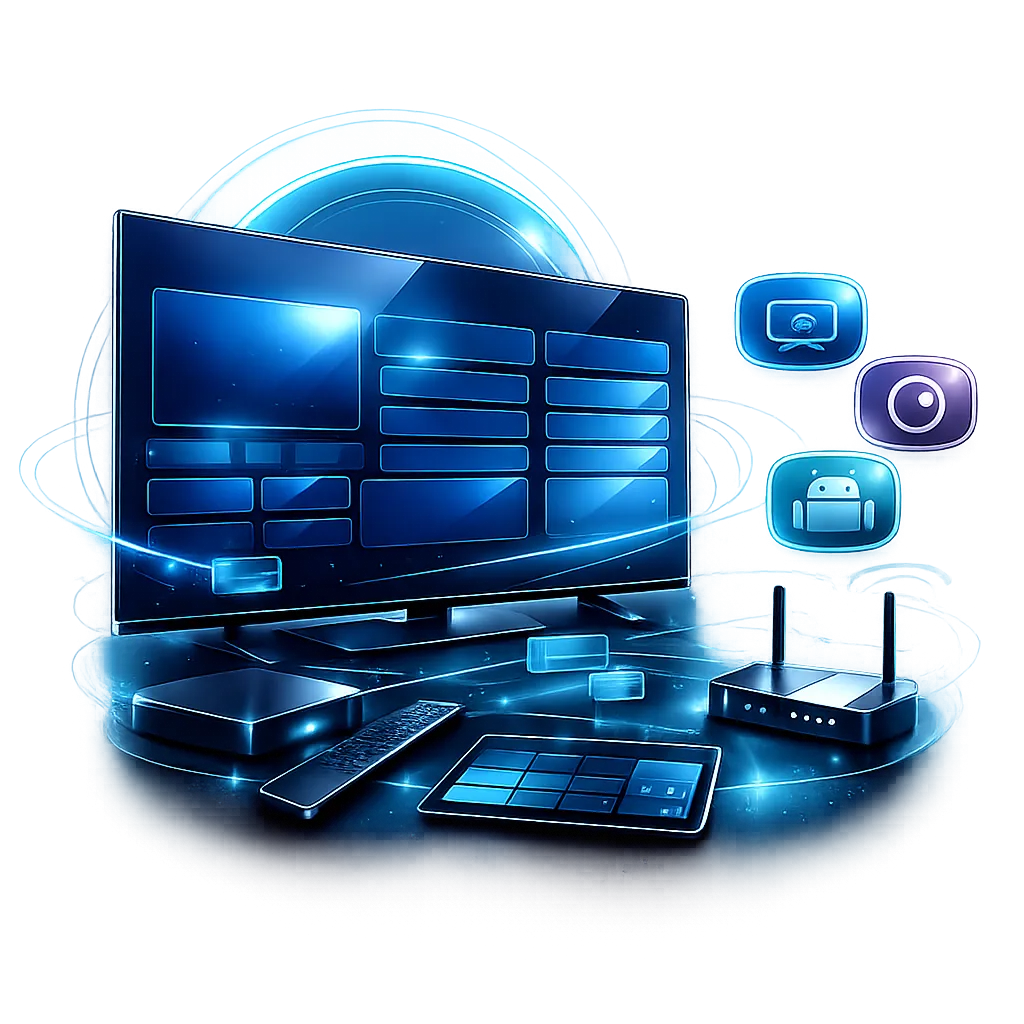
Use IBO Player to connect your Samsung or LG Smart TV, then send the displayed MAC Address and Device Key to IPTVUK4K Support for activation.
Switch on your Smart TV and open its built-in app store: Samsung Apps on a Samsung television or the LG Content Store on an LG television. Search for IBO Player, install it, then open the app.
Launch IBO Player once the installation has finished. On first opening, the app will display the device information needed to connect your IPTV subscription.
Take a clear photo of the screen or carefully note both the MAC Address and the Device Key. These two details are required before your subscription can be activated on the television.
Send the MAC Address and Device Key to IPTVUK4K Support. Our team will link your subscription to the Samsung or LG Smart TV and normally complete activation within a few minutes.
Once support confirms that activation is complete, close and reopen IBO Player. Your playlist should load automatically, giving you access to the live channels, films and series included with your subscription.
Restart the relevant app first, then the device, then the router. Record the result after each step so support can see what changed.
Model-specific behaviour can vary, but the preparation and privacy principles remain consistent.
Return to the full guide library, read the broadband speed guide or use the buffering checklist.


