

 Firestick updated and signed in
 Stable home network
 Authorised service credentials kept private
Start with the Amazon Appstore. Install a compatible player from its official listing whenever one is available. Use the sideloading route only when an authorised provider or app developer requires it, and never use random download codes or unknown APK sites.
1. Prepare Your Firestick
- Install Fire OS updates. Open Settings, choose My Fire TV or Device & Software, then About and Check for Updates.
- Confirm free storage. Remove unused apps before installing a new player. Very low storage can cause slow launches, failed updates and playback instability.
- Check the network at the television. Test another trusted streaming app on the same Firestick. A fast phone test in another room does not prove the Firestick has a stable signal.
- Restart cleanly. Restart the Firestick after updates rather than unplugging it during an installation.
2. Install a Player from the Amazon Appstore Where Available
Use Search from the Fire TV home screen, open the official Appstore result for the selected player and choose Download or Get. Review the app name, developer and permissions before signing in. If the authorised player is not available in the Appstore, continue with the controlled Fire OS 8 sideloading steps below.
Reveal Hidden Developer Options on Newer Firesticks
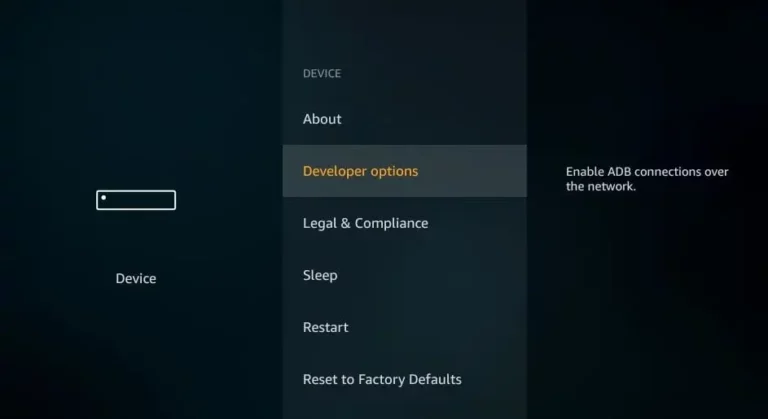
Amazon hides Developer Options on some current software versions. This is the approved Fire OS 8 sequence:
- Open Settings from the Fire TV home screen.
- Choose My Fire TV or Device & Software.
- Open About.
- Highlight the device name, such as Fire TV Stick 4K, and press the remote’s centre/select button seven times.
- When the developer confirmation appears, press Back once and open Developer Options.
- Choose Install Unknown Apps and enable permission only for the trusted installer you are about to use. ADB Debugging is not required for normal Downloader-based installation.
3. Install an Authorised App with Downloader
- Search the Amazon Appstore for Downloader and install the official app.
- Open Downloader and grant only the permissions it needs to save the installation file.
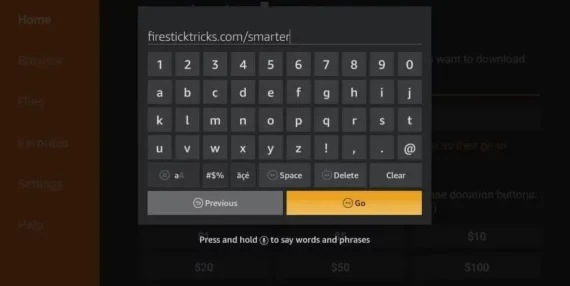
- Enter only the HTTPS URL or short code supplied by the authorised service or app developer. This guide does not publish a universal code because codes can expire or point to changed files.
- Before installing, confirm the app name and package are the ones you expected. Cancel if the page redirects to an unrelated file.
- Install the app, delete the downloaded APK after a successful installation, then return to Developer Options and switch Downloader’s Install Unknown Apps permission off.
Top 3 IPTV Players to Use on Your Firestick
The best player depends on the login method, remote-control design, household needs and whether advanced features are required. The comparison below describes the roles already reflected in the existing website guides without claiming that one app is universally best.
IPTV Smarters Pro
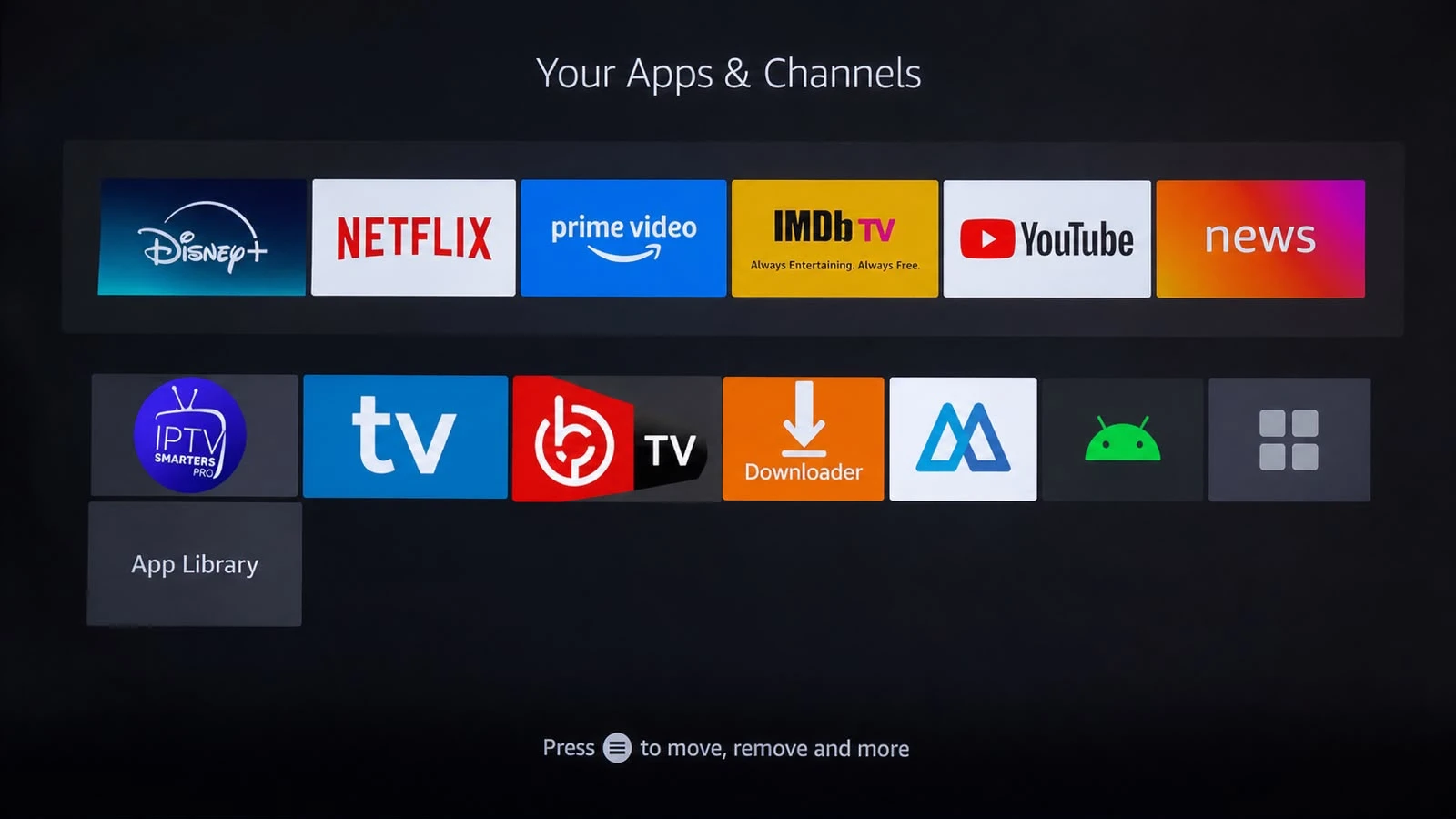
A familiar choice for provider-supplied Xtream Codes or playlist details, with clear Live TV, films and series sections. Use the exact login values supplied by the authorised service.
TiviMate
A TV-first interface suited to remote control, favourites and advanced guide management. Some advanced functions require the app’s Premium licence. The dedicated guide link remains deferred until Phase 14.
IBO Player / IBO Player Pro
Often uses a device MAC address and device key for playlist activation. Keep those identifiers private and confirm any separate app licence directly in the official app or developer channel.
| Player | Typical login route | Best suited to | Important check |
|---|---|---|---|
| IPTV Smarters Pro | Xtream Codes API, M3U playlist or provider portal details, depending on version. | Users who want a familiar category-based interface and straightforward provider login. | Verify the app source and enter the server URL exactly as supplied. |
| TiviMate | Playlist or Xtream Codes details. | Remote-first households that value guide layout, favourites and advanced organisation. | Confirm current app availability and whether the desired feature requires Premium. |
| IBO Player / Pro | Device MAC address and device key, followed by remote playlist activation. | Users whose authorised provider supports device-key activation. | Do not post the device identifiers publicly; confirm any separate app licence. |
4. Add the Supplied Account Details and Test
- Open the selected player and choose the login method supported by the authorised provider.
- Enter the server URL, username, password, playlist URL or device activation details exactly as supplied.
- Allow the channel list and guide data to load before restarting the app.
- Test one authorised live channel, one on-demand item and the remote controls.
- Sign out and remove saved credentials before selling, returning or sharing the Firestick.
Troubleshooting Firestick Setup
- Developer Options is missing: return to About, highlight the device name and press Select seven times again.
- Install Unknown Apps is unavailable: confirm Developer Options was revealed and that Downloader is installed.
- Downloader code fails: request a current code or HTTPS URL from the authorised provider. Do not search for a replacement code from an unknown source.
- App will not install: check storage, restart the Firestick and confirm the package is compatible with the device architecture and current Fire OS.
- Login fails: check capitals, punctuation, the URL prefix and whether the subscription is active. Avoid typing credentials into public support chats.
- Playback buffers: open the IPTV buffering guide and change one network or device variable at a time.
Get Secure VPN for Firestick
A VPN can add privacy or provide a controlled route comparison, but it can also reduce speed. Read the implemented VPN guide before enabling one and never use it to bypass rights restrictions.
Frequently asked questions
Keep the Firestick setup controlled and reversible
Use the Appstore route first, reveal Developer Options only when required, permit only the trusted installer, and disable the unknown-app permission after installation. Choose the player that matches the supplied login route and keep every credential and device key private.