

 Test beside the viewing screen
 Separate device and network faults
 Protect credentials during support
Buffering can begin at several different layers: the authorised service, the app, the streaming device, the room-level Wi-Fi connection, the router, household traffic or the broadband line. Restarting everything at once can hide the cause. A safer method is to record the symptom, test the affected screen and change one variable at a time.
This guide consolidates the existing IPTVUK4K home-network checklist and broadband-speed guidance into one repeatable workflow. The speed ranges are planning figures rather than guarantees; the requirements published by the authorised service should always take priority.
1. Identify whether one screen or the whole home is affected
If only one screen buffers, focus first on that device, app, storage, heat and room-level connection. If every screen is affected, pause large downloads and check the router, broadband line and authorised provider status. If only one service is affected, collect the error wording and contact that provider before changing the household network.
2. Test internet speed at the viewing device
A fast result beside the router does not describe the connection behind a television or through several walls. Run at least three tests beside the affected screen and repeat them when buffering normally appears. Record usable throughput, latency, jitter and packet loss where the test provides them.
As a cautious planning baseline, a stable 5–10 Mbps may support many standard or HD streams, while one 4K stream commonly needs around 20–25 Mbps. Codec, frame rate, provider requirements, household activity and network variation can change those figures.
| Reading or symptom | What it can indicate | Next controlled check |
|---|---|---|
| Strong, repeatable speed; one app still buffers | The line may be healthy while the app, device or upstream service is struggling. | Restart only the app, test another authorised service and check device storage, updates and temperature. |
| Good speed near the router; weak or variable speed at the screen | Room-level Wi-Fi loss, interference, obstacles or a limited device radio. | Compare Ethernet, reposition the router or device and retest on the same quality setting. |
| Low speed at both the router and screen | Household contention, broadband-line performance or a wider provider issue. | Pause large downloads, repeat the test by Ethernet and compare the result with the broadband package and ISP status. |
| High peak speed but changing latency, jitter or packet loss | The connection is unstable even though one headline number looks fast. | Run repeated tests at the problem time and compare Wi-Fi with Ethernet. |
| Playback improves when downloads or backups stop | The household connection or Wi-Fi airtime is being shared too heavily. | Restore activities one at a time; schedule large transfers or apply documented router prioritisation carefully. |
| Every device degrades mainly at busy times | Home-network or wider-network congestion may be involved. | Repeat the same test at quiet and busy times, preserve the evidence and contact the ISP or service with the comparison. |
3. Pause competing household activity
Temporarily pause game downloads, cloud backups, operating-system updates, video calls and other high-resolution streams. If playback improves, restore each activity separately. Quality-of-service controls can sometimes prioritise traffic, but they cannot create bandwidth the line does not have; record existing router settings before changing them.
4. Restart in a controlled order
- Close and reopen the viewing app, then test.
- Restart the viewing device and allow it to reconnect fully, then test.
- Restart the router only if the first two steps do not help.
- Record which action changed the symptom.
Restarting every component at once can create a temporary improvement without showing which layer failed.
5. Compare Wi-Fi with Ethernet
A wired connection is usually the most predictable local route for a stationary main television. If Ethernet fixes the problem, investigate router placement, obstacles, wireless interference and the streaming device’s Wi-Fi capability. If both routes fail in the same way, move outward to the broadband line or authorised service.
Understanding ISP Throttling
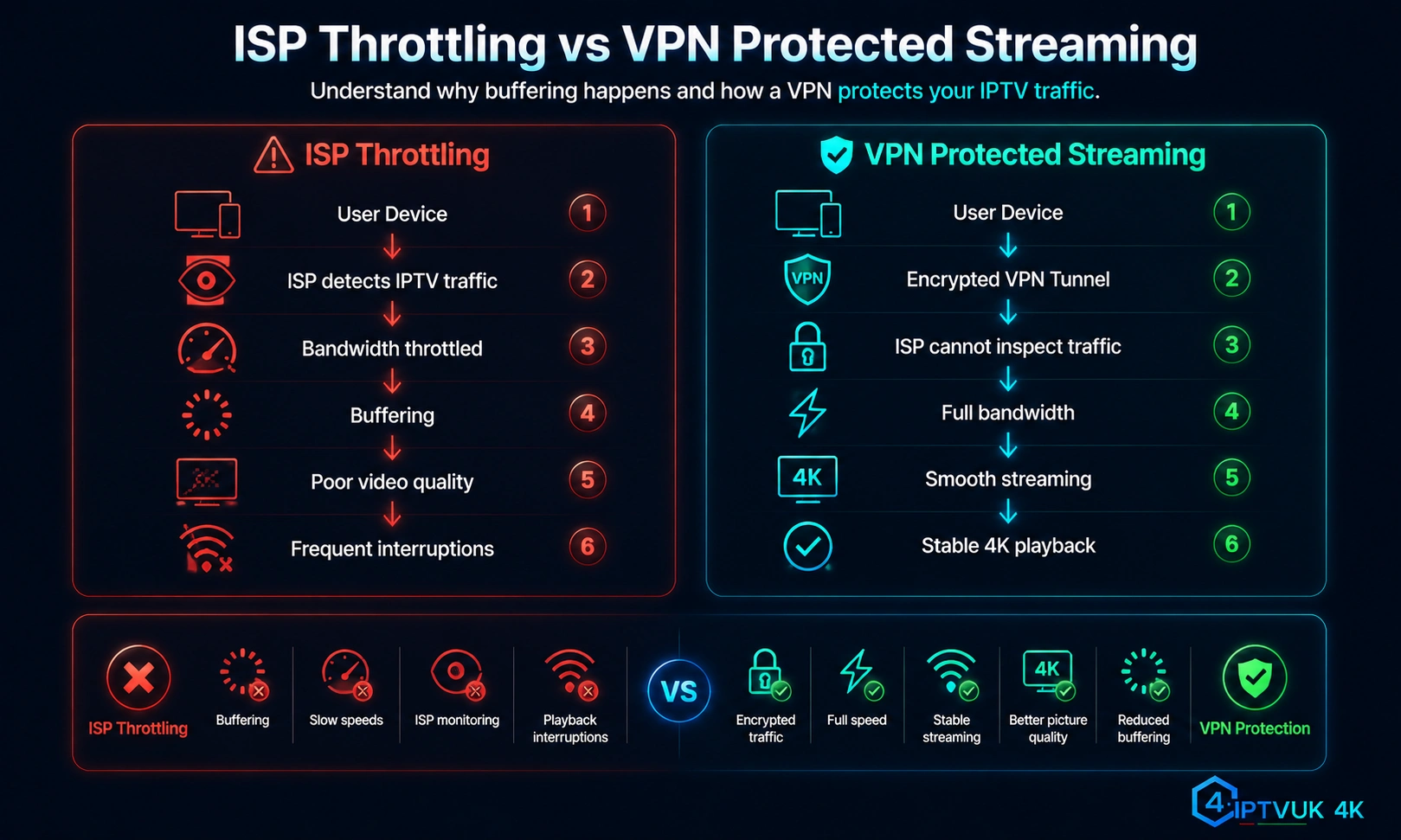
ISP throttling is deliberate traffic management that reduces or changes the treatment of particular traffic. It can be difficult to distinguish from evening congestion, a poor route, wireless interference, overloaded servers or device limitations. A single speed test, a brief improvement or a VPN result does not prove that throttling occurred.
Use controlled checks before drawing a conclusion
- Repeat the same room-level test at quiet and busy times.
- Compare another authorised streaming service on the same device.
- Compare Wi-Fi with Ethernet before changing the network route.
- Review the ISP’s traffic-management information and current service status.
- Only after the baseline is recorded, test a reputable VPN separately; encryption and route changes can improve, worsen or leave performance unchanged.
Hardware Fixes for IPTV Buffering
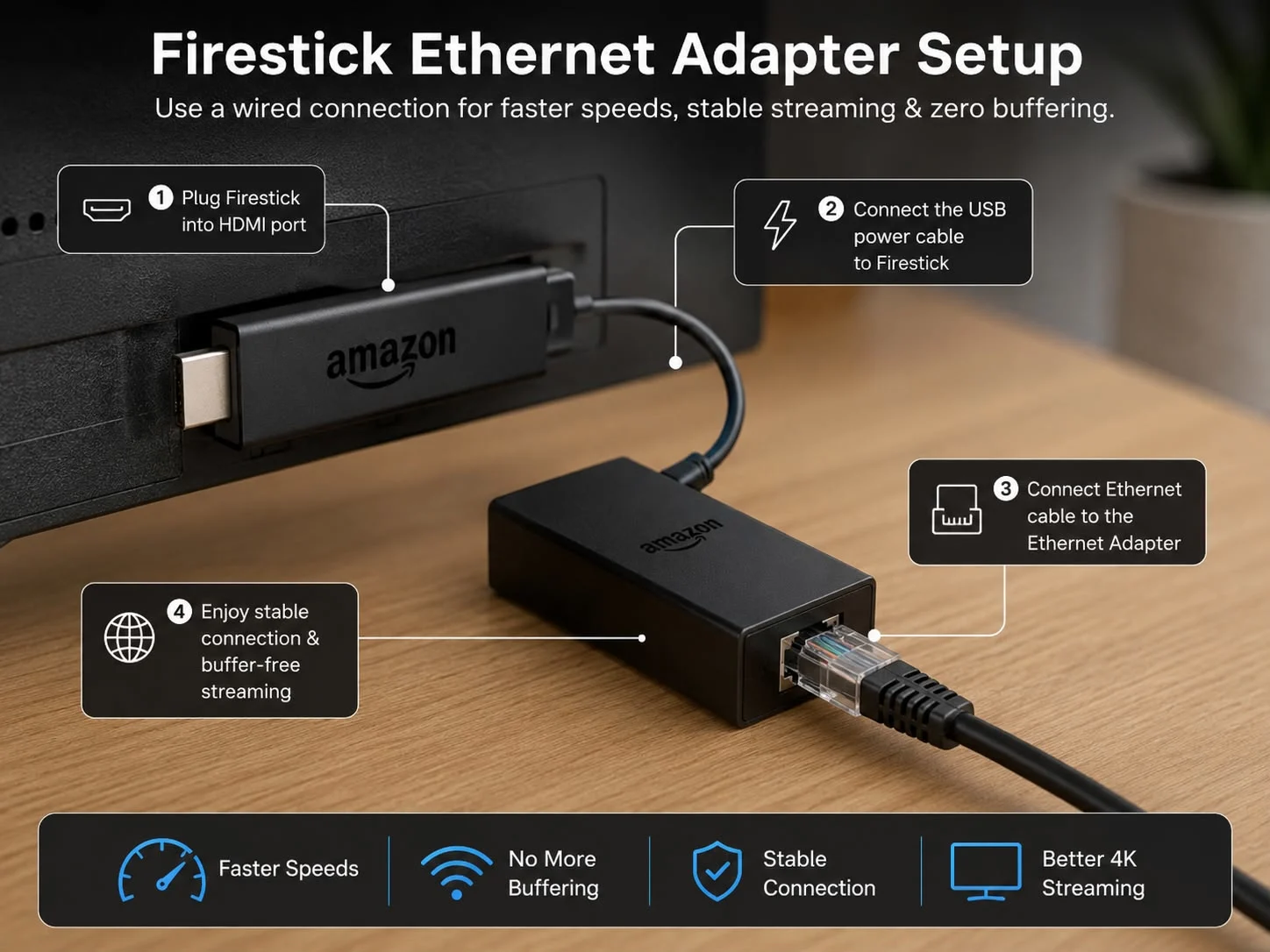
Use a compatible Ethernet route
For Fire TV and other streaming devices without a built-in Ethernet port, use a compatible adapter that supports the device’s connector and power requirements. Keep cables short, undamaged and firmly seated. A wired test is useful even when the final setup will use Wi-Fi because it separates wireless conditions from the rest of the connection.
Improve router placement before buying extenders
Place the router in an open, elevated position rather than behind the television, inside a cabinet or beside equipment that creates interference. Re-test before adding mesh nodes, extenders or a new router. Extra hardware can help coverage, but poor placement or an incorrect backhaul can add another weak link.
Check storage, updates, heat and power
Low free storage, damaged temporary data, outdated software and overheating can make playback stall even when the network is healthy. Install stable updates, remove unused apps, keep ventilation clear and use the correct power supply. Clear an app cache only through normal device controls; clearing all app data may remove settings and require activation again.
Check service status and contact support with evidence
When the problem remains across devices after clean restart, Ethernet comparison and repeated network tests, check the authorised provider’s status. Send the device model, software version, connection type, time of issue, steps completed and non-sensitive error wording. Never send passwords, playlist URLs, private access details or screenshots that expose credentials.
Buffering evidence checklist
- Affected device, app and software version
- Whether one or every household screen is affected
- Wi-Fi generation or Ethernet connection
- Time, duration and frequency of the problem
- Three room-level test results and visible variation
- Background activity paused during the comparison
- App, device and router restart results
- Storage, update, heat, cable and power checks
- Whether another authorised service works normally
Get #1 VPN to Stop Buffering
Review when a VPN may be a useful route test—and when it will add overhead without fixing the underlying device, Wi-Fi or provider problem.
Frequently asked questions
Find the failing layer before changing the whole setup
The most reliable buffering fix comes from identifying whether the failure begins with the service, app, device, home network or broadband route. Test beside the screen, compare Ethernet, preserve repeated measurements and change one variable at a time. That evidence prevents unnecessary hardware purchases and gives support a clear starting point.