

 When a VPN may help privacy or route testing
 Why a VPN is not a universal buffering fix
 Device setup, protocol choice and approved speed-test examples
Before changing anything, establish a baseline on your normal connection. If playback is already unstable, use the IPTV buffering guide first so that a VPN test is only changing one variable at a time. Then check whether the authorised service allows the device and location you intend to use.
| Question | What to check | Why it matters |
|---|---|---|
| What is the goal? | Privacy on a shared network, testing an alternative route, or troubleshooting one device. | A VPN should be used for a specific reason, not assumed to improve every stream automatically. |
| Is the service authorised? | Confirm that the IPTV service and the underlying media are authorised for your account and territory. | A VPN does not create content rights or override blackout and rights restrictions. |
| Does the device support the VPN app? | Check the operating system, available storage, router compatibility and whether split tunnelling is supported. | Installation steps, performance and troubleshooting differ between Fire TV, Android TV, phones, routers and other platforms. |
| Have you measured the baseline? | Record the normal result first, then compare with the VPN using the same device and time period. | Otherwise you cannot tell whether the VPN helped, harmed or made no meaningful difference. |
| Which protocol will you test? | Start with the provider’s recommended protocol, then compare WireGuard and OpenVPN where supported. | Protocol choice can change connection overhead, reconnection speed and compatibility. |
The Premier League Block
In the UK, the main issue is not whether a VPN exists but whether you have the right to view a specific match, channel or highlights package. League rights, broadcaster contracts and the Saturday 3 PM blackout are separate from the technology used to deliver the stream. A VPN may change the route between the device and the internet, but it does not grant permission to watch blocked or unauthorised content.
If a service promises that a VPN will magically “unlock every match”, treat that as a warning sign. Authorised services should be able to explain what content you are allowed to view, on which devices, and under what terms.
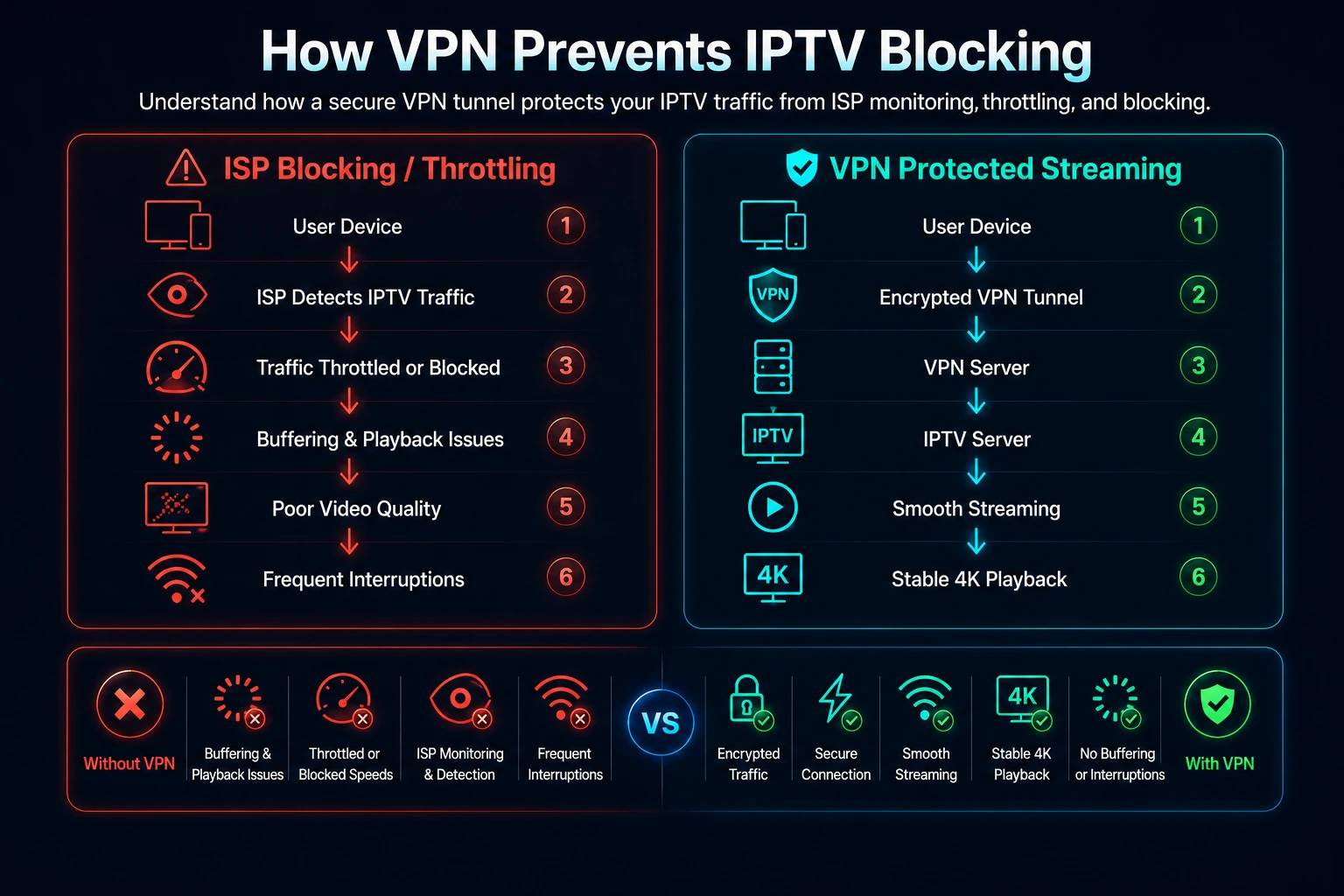
How to Use a VPN with IPTV
- Confirm the normal connection first. Sign in to the authorised IPTV service without the VPN and check startup time, stability and any error messages.
- Install the VPN from an official source. Use the device’s official app store or the provider’s documented method only. Avoid modified APKs or unknown downloads.
- Choose a compatible server and protocol. For a UK-authorised service used in the UK, start with the nearest appropriate UK route unless the service terms say otherwise. Begin with the provider’s recommended protocol and change only one setting at a time.
- Reconnect and repeat the same test. Open the IPTV app again, compare playback, and note whether the stream starts faster, slower or behaves the same.
- Disconnect if performance worsens. A VPN can add overhead. If playback becomes less stable, revert to the normal route and continue troubleshooting the device, Wi-Fi or service.
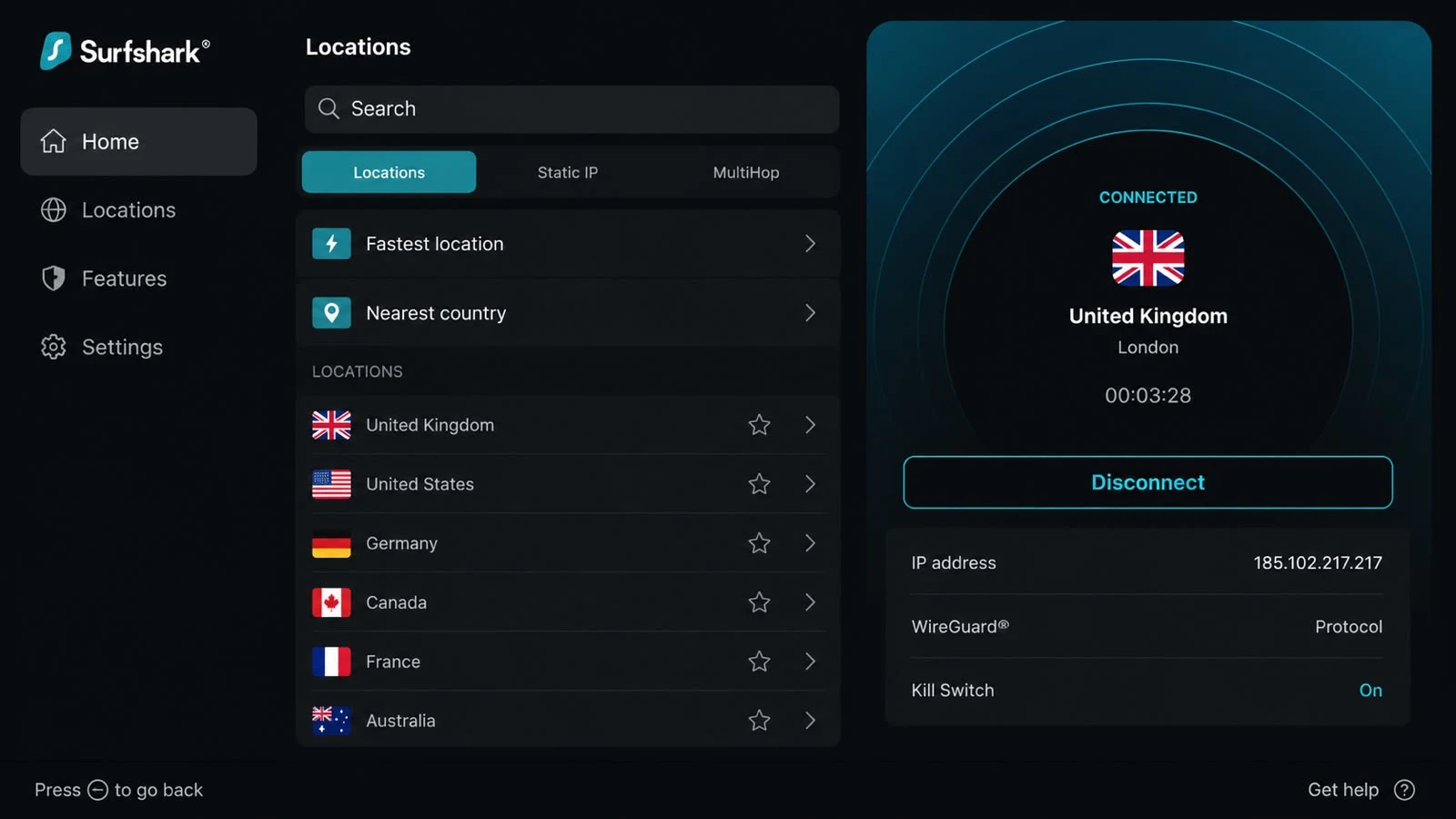
Approved Speed-Test Examples
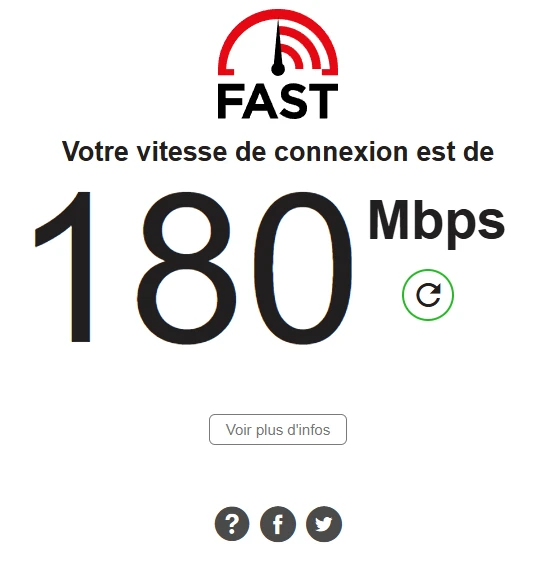
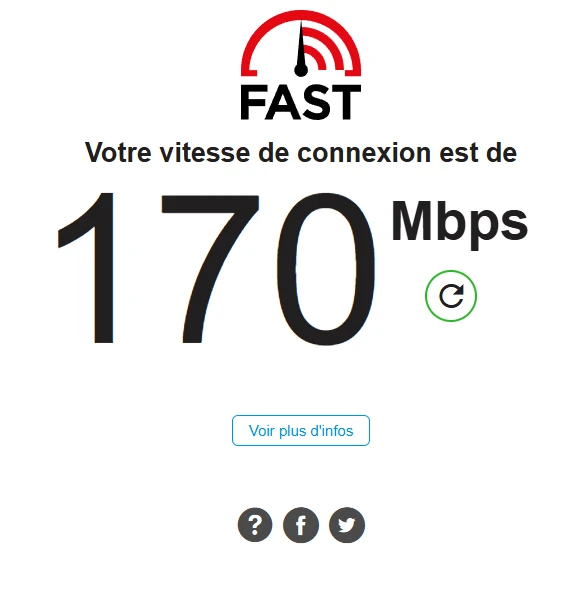
The two screenshots below are the final approved Phase 5 speed-test images. They show the same connection tested before and while using a VPN. They are examples only: one before/after speed result does not prove a general performance rule, but it can help illustrate the modest overhead that a VPN sometimes introduces.
WireGuard vs. OpenVPN
Where a VPN supports both protocols, it is reasonable to compare them. The best choice depends on the device, network and provider implementation, but the differences below help structure the test.
| Topic | WireGuard | OpenVPN |
|---|---|---|
| Connection overhead | Usually leaner, which can mean higher speeds and faster reconnection on supported devices. | Typically heavier, which can reduce peak speed or increase startup time on modest hardware. |
| Compatibility | Common on newer apps and routers, but not universal on every legacy device. | Very widely supported and still useful where older routers, profiles or networks expect it. |
| Troubleshooting use | Good default starting point when available because the setup is often simpler. | Useful fallback when WireGuard misbehaves or when you need a more established compatibility option. |
| What to test | Playback startup time, stability, reconnection after sleep and overall overhead. | The same checks, plus whether the device runs hotter or becomes less responsive during long sessions. |
What to Check Before Paying for a VPN
- Device fit: does the VPN support the exact device or router you plan to use?
- Privacy controls: check the provider’s account protection, sign-in method and update path.
- Protocol options: confirm whether WireGuard, OpenVPN or split tunnelling are available where you need them.
- Support clarity: make sure there is a clear help route if the VPN conflicts with a device or app.
- Testing flexibility: prefer a setup you can disable quickly so you can compare against the normal connection.
Choose a VPN for IPTV Privacy and Stability
If you want a current compatibility recommendation, contact support and explain the device, app and problem you are trying to solve. Compare the baseline against the VPN rather than assuming it will always improve playback.
Frequently asked questions
Use a VPN as a controlled test, not a magic fix
A well-run VPN test can help you compare privacy, routing and device behaviour, but it is only one part of the streaming setup. Check the authorised service first, test the home network methodically, and keep in mind that a VPN may help, harm or change nothing at all.