

 Active subscription and login details to hand
 Private home network, not public Wi-Fi
 Credentials kept private and never shared
IPTV Smarters Pro is one of the most widely used player interfaces for authorised IPTV services, because it accepts the Xtream Codes API details that most providers issue and organises them into clear Live TV, Movies and Series sections. This guide brings the login and troubleshooting knowledge already published across the IPTVUK4K device guides into one place. It does not replace those guides: each device still has its own preparation steps, and the device-specific instructions remain the correct reference for installation on that hardware.
1. Before You Start IPTV Smarters Pro Setup
- Confirm the subscription is active. Check the confirmation issued after your order. A lapsed or not-yet-activated subscription produces the same on-screen error as a mistyped password.
- Keep the supplied details in a private place. You need the username, password and server URL exactly as written. Do not post them into public support chats, forums, comment sections or social messages.
- Update the device first. Install pending system and app updates before setup. An out-of-date device can fail to complete a secure connection to the server.
- Set the date and time to automatic. An incorrect clock is a common and easily missed cause of rejected logins.
- Test the network at the screen you will actually watch on. Open another trusted streaming service on the same device. A fast phone test in a different room does not prove that device has a stable signal.
2. Download and Install the Correct Edition
IPTV Smarters Pro is published in different builds for different platforms, and the correct route depends on the device rather than on a single universal download. Install it from the official app store for your platform where a listing exists, and use a developer-supplied route only when the platform has no store listing. Always take the current version offered by that official source rather than an archived installer, because older builds can fail to connect to updated servers.
| Device type | Usual installation route | What to check before installing |
|---|---|---|
| Android phone and tablet | Official Android app store listing. | Confirm the developer name on the listing and review the requested permissions. |
| iPhone and iPad | Official Apple App Store listing. | Editions and names can differ on iOS; match the listing to the login route your provider supplied. |
| Windows and Mac | Official download page for the desktop build. | Download over HTTPS from the official page only, then check the installer before running it. |
| Fire TV Stick | Amazon Appstore where listed, otherwise a controlled sideload. | Follow the Firestick setup guide and disable the unknown-app permission afterwards. |
| Smart TV and set-top boxes | The platform's own app store, where an edition exists. | Availability varies by brand and model year; use the device guide for that hardware. |
How to Log In Using Xtream Codes API
The Xtream Codes API route is the login method IPTVUK4K supplies details for, and it is the same on every platform even when the surrounding menus look different. The screen asks for four values only. Enter each one exactly as supplied.
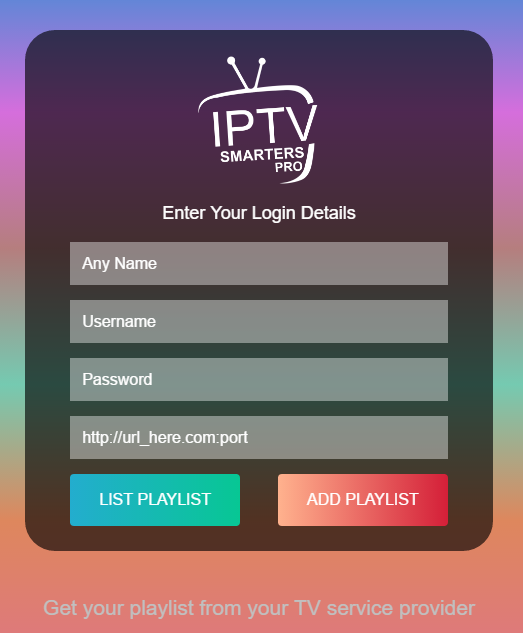
- Open the app and choose the Xtream Codes route. Launch IPTV Smarters Pro and select Login with Xtream Codes API rather than the playlist or file options.
- Enter any playlist name. This label is only used to identify the account on this device. Choose something recognisable such as the household room or the subscription name.
- Enter the username and password exactly as supplied. Capitals, lower case and punctuation all matter. Type them rather than relying on autocorrect, and check that no trailing space has been copied in.
- Enter the server URL without changing it. Keep the prefix, the full address and any port number exactly as written. Do not add or remove a trailing slash.
- Select Add User. The app connects to the server and imports the playlist associated with your subscription.
- Wait for the import to finish. Allow the live channels, films and series to finish loading before opening anything. Interrupting the first import is a common cause of empty categories.
3. Step-by-Step Verification Checklist
Work through these checks in order after the playlist has loaded. Completing them in sequence separates a setup fault from a network or service fault before you change any settings.
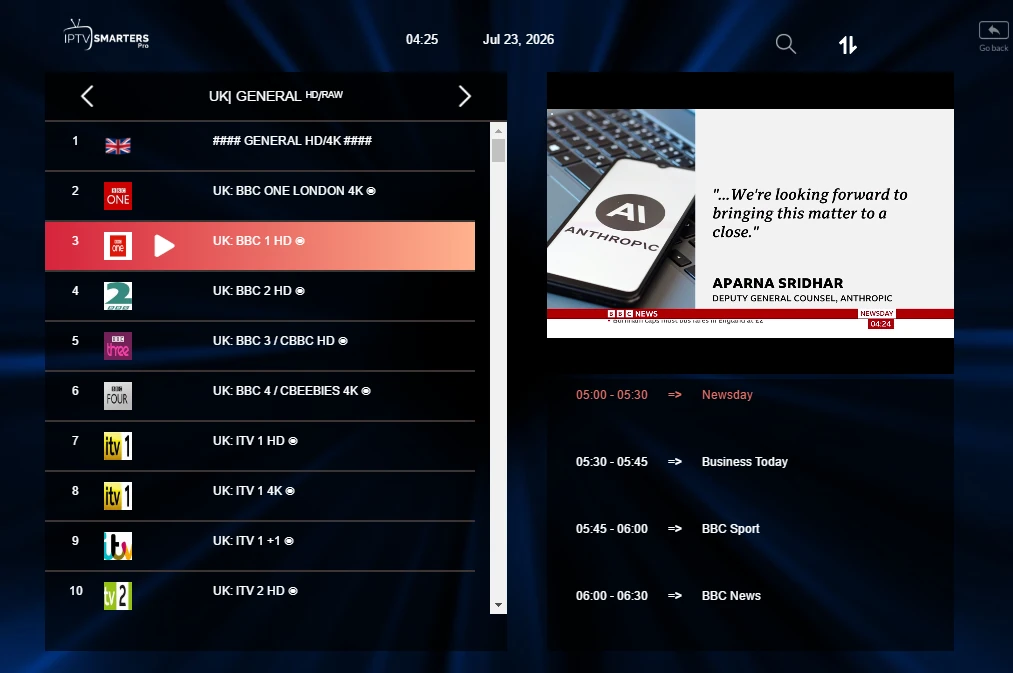
- 1. The playlist imported. Live TV, Movies and Series all show content rather than empty categories.
- 2. A live channel opens. Play one authorised live channel and let it run for at least two minutes without touching the remote or screen.
- 3. An on-demand item opens. Play one film or series episode and confirm it starts and seeks correctly.
- 4. The guide data is present. Programme information appears against channels rather than blank rows.
- 5. Channel switching is clean. Move between three channels in succession and confirm each one loads.
- 6. Playback survives a restart. Close the app fully, reopen it and confirm the account is still saved and still plays.
- 7. A second device still works. If your plan covers more than one screen, confirm the other device is unaffected before assuming a service fault.
- 8. Credentials are cleared from anywhere temporary. Delete the details from notes apps, clipboards or messages once setup is confirmed.
IPTV Smarters Pro Troubleshooting
Change one variable at a time and record the result after each step. Most Smarters Pro faults resolve inside the app's own settings, which is where the checks below begin.
- Login is rejected: re-enter the username, password and server URL exactly as supplied, confirm the subscription is active and set the device date and time to automatic before trying again.
- The playlist is empty after a successful login: close the app completely, reopen it and allow the import to finish without interruption. Refresh the channel list from settings if the option is available.
- Channels load but the guide is blank: allow more time for guide data to populate, then use the guide refresh control in settings. Guide data usually arrives after the channel list, not with it.
- A stream starts then stops, or picture quality drops: this is a network or device symptom rather than a login fault. Work through the IPTV buffering guide and change one network variable at a time.
- One channel fails while others play: the fault is with that single stream, not your setup. Test two more channels before contacting support so you can report the pattern accurately.
- Playback fails on one device only: compare the app version, available storage and network route against the device that works, and use that device's own setup guide.
- Audio plays with no picture, or the video stutters: try an alternative player or stream-format option in settings, changing only one at a time and testing the same channel after each change.
- The app closes unexpectedly: check free storage, restart the device rather than only the app, and confirm the installed build is the current version from the official source.
4. Device-Specific Setup Still Applies
This page covers the login and troubleshooting steps that are the same everywhere. Preparation, installation and permissions differ by hardware, so continue to use the guide written for your device alongside this one.
Fire TV Stick
Needs the Appstore route where available, or a controlled sideload with the unknown-app permission enabled only for the trusted installer and switched off afterwards.
Buffering and network faults
Streams that start and then stall are almost never a login problem. Diagnose the network and device in a fixed order instead of changing app settings repeatedly.
Other devices
Windows, Mac, iPhone, iPad, Apple TV, Android and Smart TV each have their own preparation steps and their own installation route.
Get Premium IPTV for Smarters Pro
Choose a plan that supplies Xtream Codes API details for IPTV Smarters Pro and works across the devices in your household.
Frequently asked questions
Keep the Smarters Pro setup simple and reversible
Install from an official source, use the Xtream Codes API details exactly as supplied, let the first import finish, then work through the verification checklist before changing anything. When a stream stalls rather than fails to load, treat it as a network question and diagnose it in order. Keep every credential private and remove saved details before selling, returning or sharing a device.