

 The exact model and firmware version
 The portal URL supplied by your service
 Your MAC address kept private
A MAG receiver is a dedicated set-top box rather than a smart device running apps. Instead of installing a player and typing in a username, you register the box’s MAC address with an authorised service and point it at a portal address. That single difference explains almost every MAG setup problem, including the STB Blocked message covered later on this page. Start by identifying which generation of hardware you actually have, because firmware behaviour and 4K support differ significantly across the range.
| Model family | Generation | Typical output | What to check first |
|---|---|---|---|
| MAG 250 / 254 / 256 | Older | Standard HD | By far the most counterfeited range. Verify authenticity before buying or activating. |
| MAG 322 / 324 | Mid | HD with improved hardware | Confirm the firmware is current; some units shipped with very old builds. |
| MAG 420 / 424 | 4K-capable | 4K with HEVC support | Needs consistent bandwidth. Test the line before expecting 4K streams to hold. |
| MAG 520 / 524 / 540 / 544 | Current | 4K, HDR on supported models | Best supported by current firmware. Prefer these if you are buying new. |
Setting Up Modern MAG Boxes
Work through these five stages in order. Record what you find at each step, because support cannot diagnose a portal problem without the model, firmware version and MAC address.
1. Record the receiver details
Note the exact model number, the firmware version currently installed and how the box connects to your network. Wired Ethernet is strongly preferred on MAG hardware: the wireless adapters in these receivers are modest, and a marginal signal produces stalls that look identical to a service fault.
2. Find the MAC address
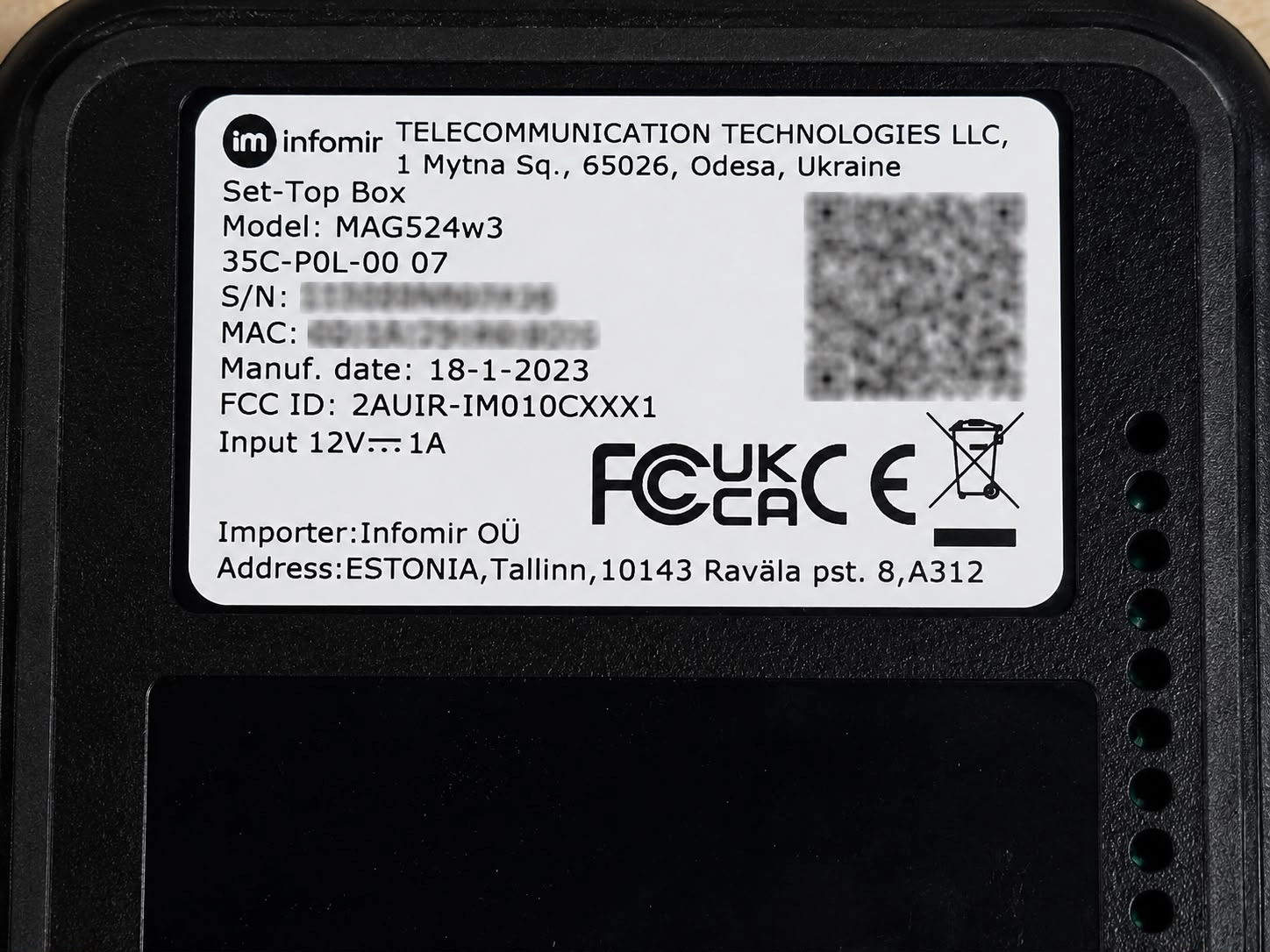
The MAC address is printed on the label on the underside of the receiver, and it is repeated on the device information screen inside System Settings. It is the identifier your service registers, so it must be transcribed exactly, including the colons.
3. Update the firmware
Open System Settings, then the software or update section, and apply any pending update offered for your exact model. Allow the receiver to restart on its own and do not remove power during the process, because an interrupted firmware update can leave the box unusable. If no update appears over the network, obtain the correct image for your specific model from the manufacturer’s official support pages rather than a third-party mirror — installing firmware built for a different model is a common way to brick a receiver.
4. Enter the portal settings
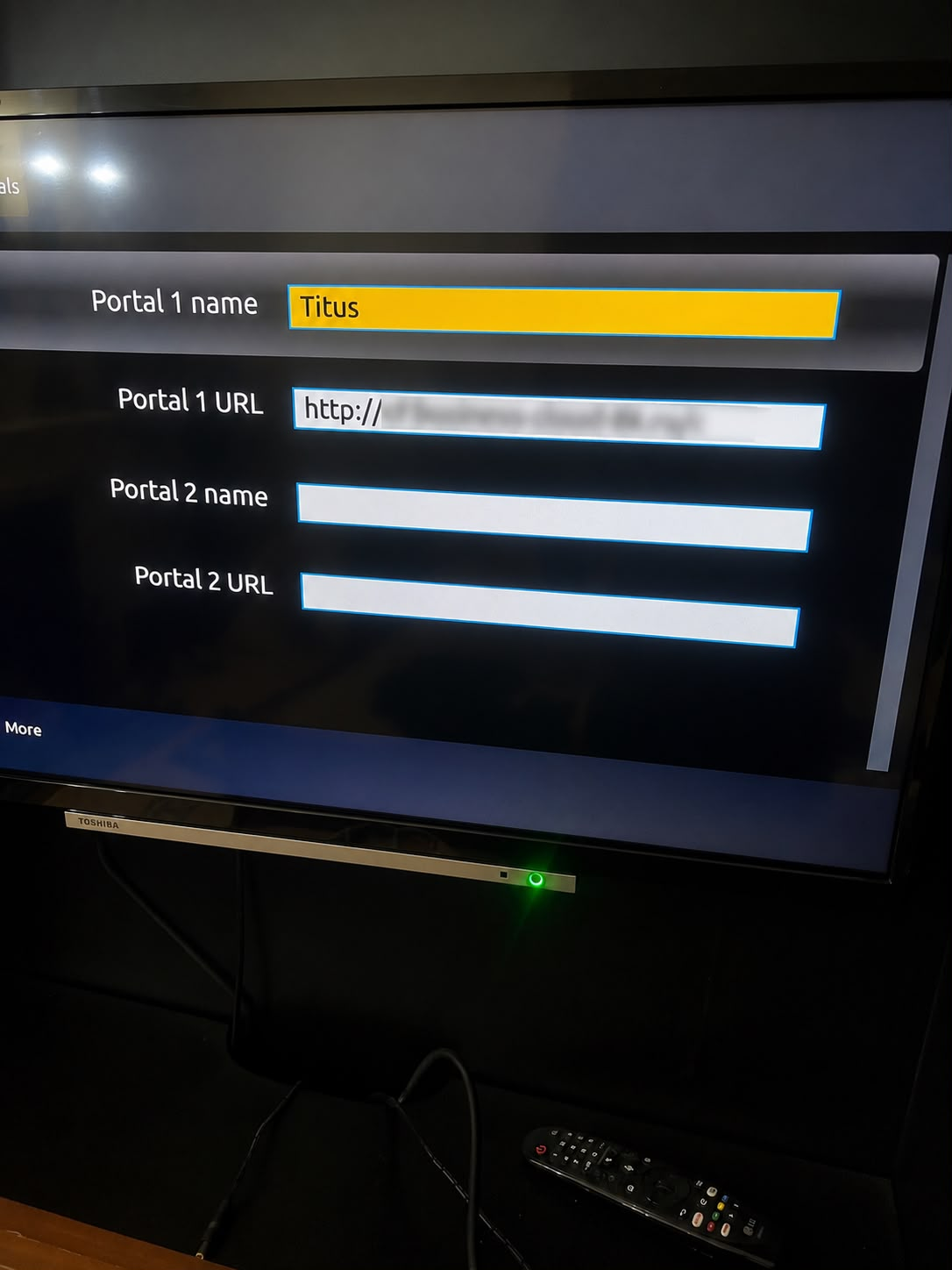
Open System Settings, then Servers, then Portals. Give Portal 1 any recognisable name, then enter the portal URL exactly as supplied by the authorised service. Preserve the prefix, the full address, any port number and any trailing path. Nothing else needs changing on this screen.
5. Restart and verify
- Reboot cleanly from the menu rather than pulling the power lead.
- Confirm date, time and network status are set automatically. An incorrect clock can cause a portal to reject an otherwise valid receiver.
- Let the portal load fully before pressing anything. First load is slower than later ones.
- Test one authorised channel and leave it running for two minutes without touching the remote.
- Check navigation and recovery so you know how to return to settings if a later change goes wrong.
How to Fix STB Blocked Error
STB Blocked is the message a MAG receiver shows when the portal refuses it. It almost never means the hardware has failed. It means the portal does not recognise, or will not accept, this particular box. Work through the causes below in order, changing one thing at a time.
- The MAC address was never registered. Confirm your provider holds the exact MAC printed on the underside label. A single wrong character is enough.
- The MAC was transcribed incorrectly. Zero and the letter O, and 8 and B, are the usual culprits. Read it back character by character.
- The subscription has lapsed or not yet been activated. Check your order confirmation before changing any setting on the box.
- The portal URL is wrong or has changed. Re-enter it exactly as supplied, preserving the prefix, port and any trailing path.
- The clock is wrong. Set date and time to update automatically, then reboot and retry.
- The receiver is a counterfeit with a duplicated MAC. If the MAC does not begin 00:1A:79, or the provider reports it as already in use by another device, this is the likely explanation and no setting will resolve it.
- The box was previously registered elsewhere. A second-hand receiver may still be tied to a previous account and may need releasing before it can be reused.
When Playback Stalls Rather Than Fails
If the portal loads and channels open but the picture stalls or drops quality, that is a network or line problem rather than an activation problem. MAG receivers are particularly sensitive to marginal wireless, so move to wired Ethernet before changing anything else. Work through the IPTV buffering guide and change one network variable at a time.
Activate Your MAG Box Now
Choose a plan that supports MAG portal activation, and supply your MAC address through the official support route to get your portal details.
Frequently Asked Questions
Get the identifiers right and the rest follows
Almost every MAG problem comes down to three values: the model, the MAC address and the portal URL. Record all three before changing anything, use wired Ethernet where you can, update firmware only from the manufacturer’s official source for your exact model, and treat the MAC as a credential rather than a serial number. If the box was bought cheaply from an unfamiliar seller and the MAC does not begin 00:1A:79, suspect the hardware before you suspect the service.