

 Dedicated players for Windows
 What actually runs on macOS
 VLC set up step by step
Two things decide which desktop player suits you. The first is the login route: Xtream Codes API details unlock categories and a programme guide in a dedicated player, while a plain M3U playlist URL will open in almost anything but carries far less information. The second is the platform, because the Windows and macOS options genuinely differ — several well-known Windows players have no Mac build at all. The table below sets both out before the platform sections.
| Player | Windows | macOS | Login route | Best suited to |
|---|---|---|---|---|
| IPTV Smarters Pro | Yes | Yes | Xtream Codes API or M3U | Households given Xtream Codes details who want a familiar category layout. |
| MyIPTV Player | Yes | No | M3U playlist or Xtream Codes | Windows users wanting a free, lightweight player with EPG support. |
| VLC Media Player | Yes | Yes | M3U playlist URL only | Testing that a playlist works, or occasional viewing without extras. |
| GSE Smart IPTV | No | Yes | M3U or Xtream Codes | Mac users who want categories and guide data rather than a bare list. |
| Kodi with a PVR add-on | Yes | Yes | M3U through PVR IPTV Simple Client | People who want one media centre for everything and will spend time configuring it. |
Top Dedicated IPTV Players
On Windows the choice is widest. These are the players worth shortlisting, and all of them should be installed from the developer’s own site or the Microsoft Store rather than from a download aggregator.
IPTV Smarters Pro
The most common choice when a provider issues Xtream Codes API details. It presents Live TV, Movies and Series as separate sections and handles guide data without extra configuration. The full account setup for Windows, including exactly which fields to enter, is already covered step by step in the Windows setup guide — follow that rather than reconstructing it from a review.
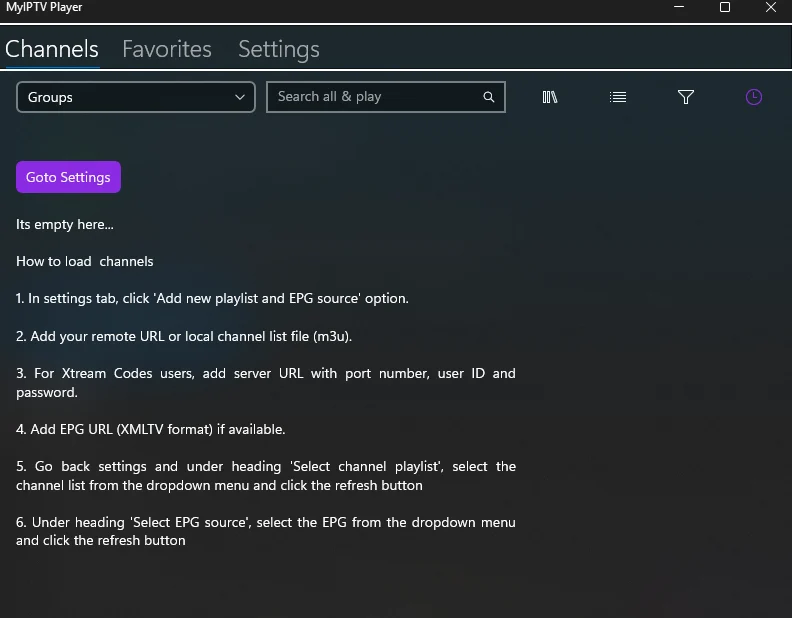
MyIPTV Player
A free, lightweight Windows player distributed through the Microsoft Store. It accepts either a remote M3U URL or a local playlist file, and it will take Xtream Codes details as a server URL with port, user ID and password. EPG data is added separately as an XMLTV URL. As the screenshot above shows, it starts completely empty: the playlist source is added in Settings first, then selected from a dropdown and refreshed before any channels appear. That two-stage process catches people out.
Kodi with a PVR add-on
Kodi is a full media centre rather than an IPTV client. It can present an authorised playlist through the PVR IPTV Simple Client add-on, alongside your local media library. It is the most capable option here and comfortably the most work to configure, so it suits people who want one interface for everything.
Best IPTV Players for macOS
macOS has a noticeably shorter list. Several popular Windows players — MyIPTV Player among them — have no Mac build, so do not assume a recommendation written for Windows applies to your machine.
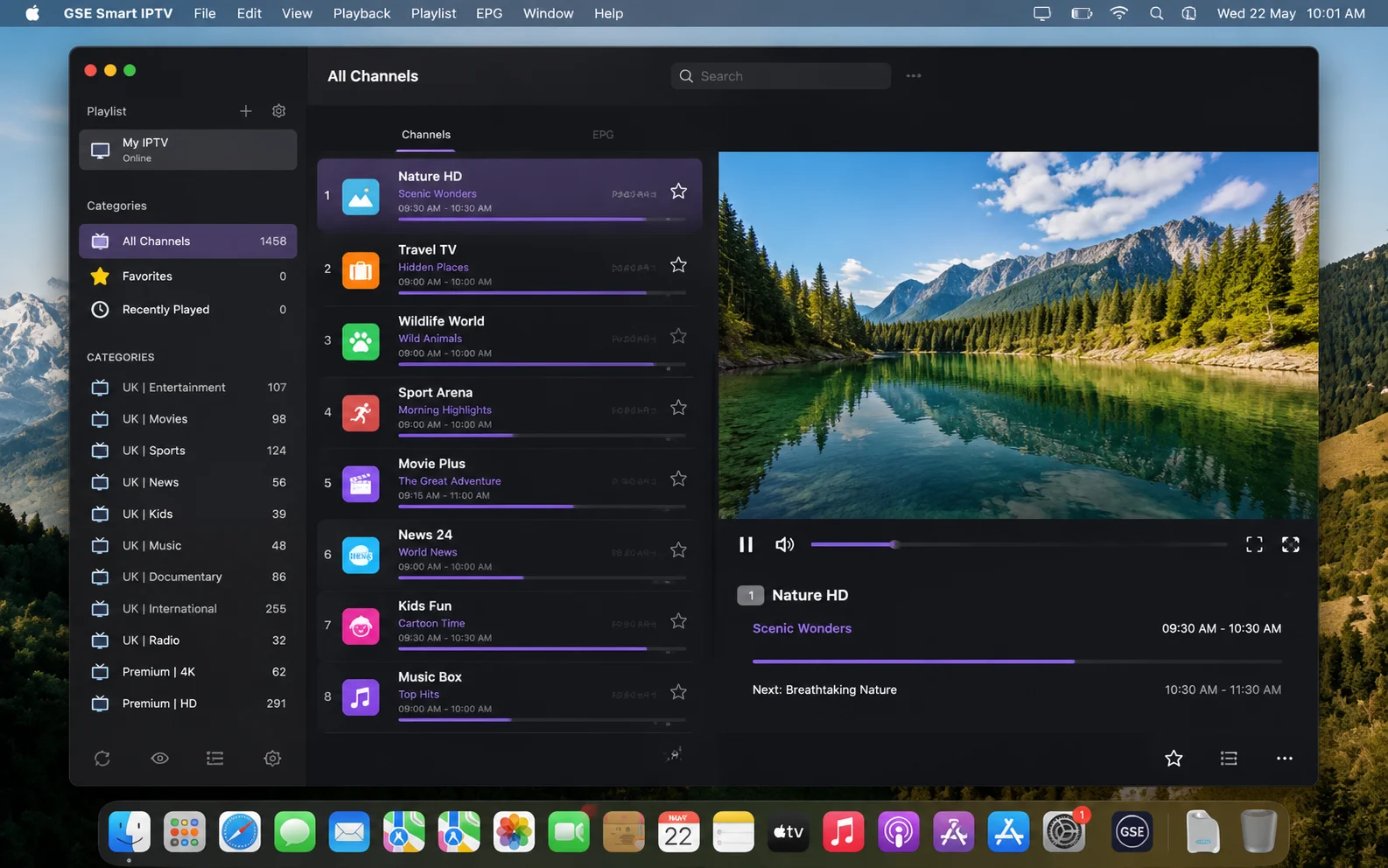
GSE Smart IPTV
The strongest dedicated option on macOS. It accepts both M3U playlists and Xtream Codes logins, groups channels into categories and displays programme information against each entry, which is the main thing VLC cannot do. The interface is more utilitarian than a television-first player, but on a desktop that matters less.
IPTV Smarters Pro for Mac
A desktop build exists and works the same way as the Windows version, taking Xtream Codes API details. Feature parity with the Windows release is not guaranteed and can lag between updates, so check the current build before assuming a specific feature is present.
The browser route
If your authorised service offers a web player, that avoids installing anything at all. The Mac setup guide covers preparing macOS and a clean browser session for exactly this route, including display, audio and sign-out checks.
Step-by-Step: VLC Setup
VLC is the fastest way to confirm that a playlist works, and it runs identically on both platforms. It is a media player rather than an IPTV client, so treat it as a reliable test tool and a basic viewer rather than a full solution.
- Install VLC from the official source. Download it from the VideoLAN project’s own website and install the current build for your operating system. Take the version offered there rather than an archived installer.
- Open the network stream dialog. On Windows use Media → Open Network Stream. On macOS use File → Open Network. The keyboard shortcut is Ctrl+N on Windows and Cmd+N on a Mac.
- Enter the playlist URL. Paste the M3U URL supplied by your authorised service exactly as provided, preserving the prefix and any port number. Do not retype it: a single wrong character produces the same failure as an inactive subscription.
- Play the playlist. Select Play and wait for VLC to finish loading the list before clicking anything. Large playlists take a moment.
- Open the playlist pane. Use View → Playlist on Windows or Window → Playlist on macOS to see the full channel list, then select a channel.
Hands-On Testing Notes
How to assess a player — method
Player comparisons are easy to get wrong because most differences only appear after a few days. Rather than publish benchmark figures that would not transfer to your machine or your line, here is the assessment method used to separate these players, so you can run it yourself on the free tiers before committing to anything.
- Test one player at a time, on the same evening. Comparing two apps configured on different nights, on a network that may have changed in between, tells you almost nothing.
- Use the same channel for every test. Pick one authorised live channel and return to it in each player. Channel-to-channel variation is larger than player-to-player variation.
- Let each one run for at least ten minutes. Startup performance and sustained performance are different things, and most stability problems appear after the first few minutes, not during them.
- Check guide data separately from channels. The channel list and the EPG arrive independently. A blank guide five minutes in is normal; a blank guide an hour in is not.
- Test channel switching, not just playback. Move between three channels in succession. This is where lightweight players and heavier ones diverge most visibly.
- Note what happens on restart. Close the application fully and reopen it. Whether the account, playlist and position are retained is a real usability difference.
What these notes are: a documented assessment method and the capability differences that follow from how each player works — for example, that VLC has no EPG is a property of the application, not a test result. They are not benchmark measurements, because performance depends on your hardware, your connection and your service, and a figure recorded on one machine would not transfer to yours.
If Playback Stalls Rather Than Fails
A stream that loads and then stutters is a network or machine question, not a player question, and switching applications will not fix it. Close unrelated tabs and applications, prefer a wired connection where practical, then work through the IPTV buffering guide and change one variable at a time.
Get Premium IPTV for PC/Mac
Choose a plan that supplies the login details your desktop player needs, whether that is Xtream Codes API or a straight M3U playlist.
Frequently Asked Questions
Match the player to the login you were given
Start with what your service actually supplied. Xtream Codes API details justify a dedicated player and give you categories and a guide; a bare M3U URL will run in VLC within five minutes and tells you immediately whether the playlist itself is sound. Check platform support before shortlisting anything, because the Windows and macOS lists are genuinely different. Install only from official sources, and once you have chosen, use the setup guide for your platform rather than working from a comparison page.